Collect giveaway entries at your booth, counter or event
Set one tablet or laptop up as a signup station. Each visitor enters on a fresh form, scans a QR code to take their entry home on their phone, and the page resets for the next person.
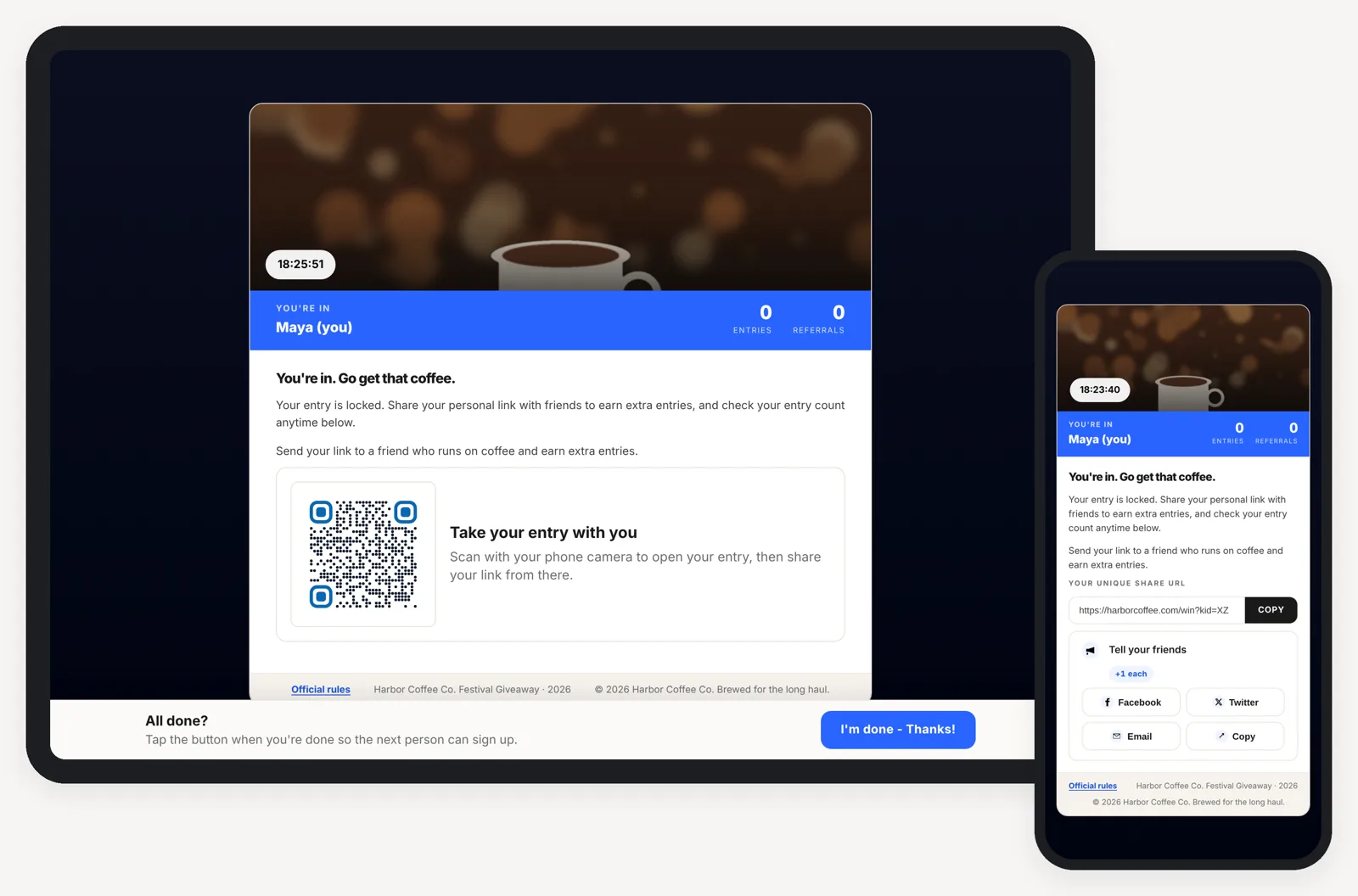
What is kiosk mode?
Kiosk mode turns one shared device into a giveaway signup station. The form never fills in the last person's details, each person gets a QR code that opens their own entry on their phone, and the page forgets them when they tap "I'm done" or walk away. Only the device you set up behaves this way. Everyone else, including people opening their link on their own phone, sees your normal page, so referrals still count.
From a busy booth to a list that keeps growing
One campaign handles the signups at your table and the sharing that happens after people walk away.
-
1YouTurn it on
Switch on kiosk mode in Campaign settings, then open your page on the tablet with the kiosk link.
-
2VisitorsSign up at the tablet
Each person enters on a blank form. Nobody sees the last person's name or email.
-
3VisitorsScan to take it home
A QR code opens their own entry on their phone, with their share link and points.
-
4AutomaticThe page resets
The tablet clears itself for the next person.
- I'm doneThey tap the button when they're finished.
- Walked awayAfter 60 seconds a 10-second countdown starts, then it resets.
-
5AutomaticSharing keeps going
Your automatic reply emails each person their link, and friends they refer count toward their entries.
Safe for a tablet that a hundred people touch
Kiosk mode changes the few things that go wrong when strangers share one screen, and leaves the rest of your campaign alone.
What you set up and what each person sees
The tablet screens are from a sample coffee giveaway built with the KickoffLabs page builder, running in kiosk mode on a tablet.
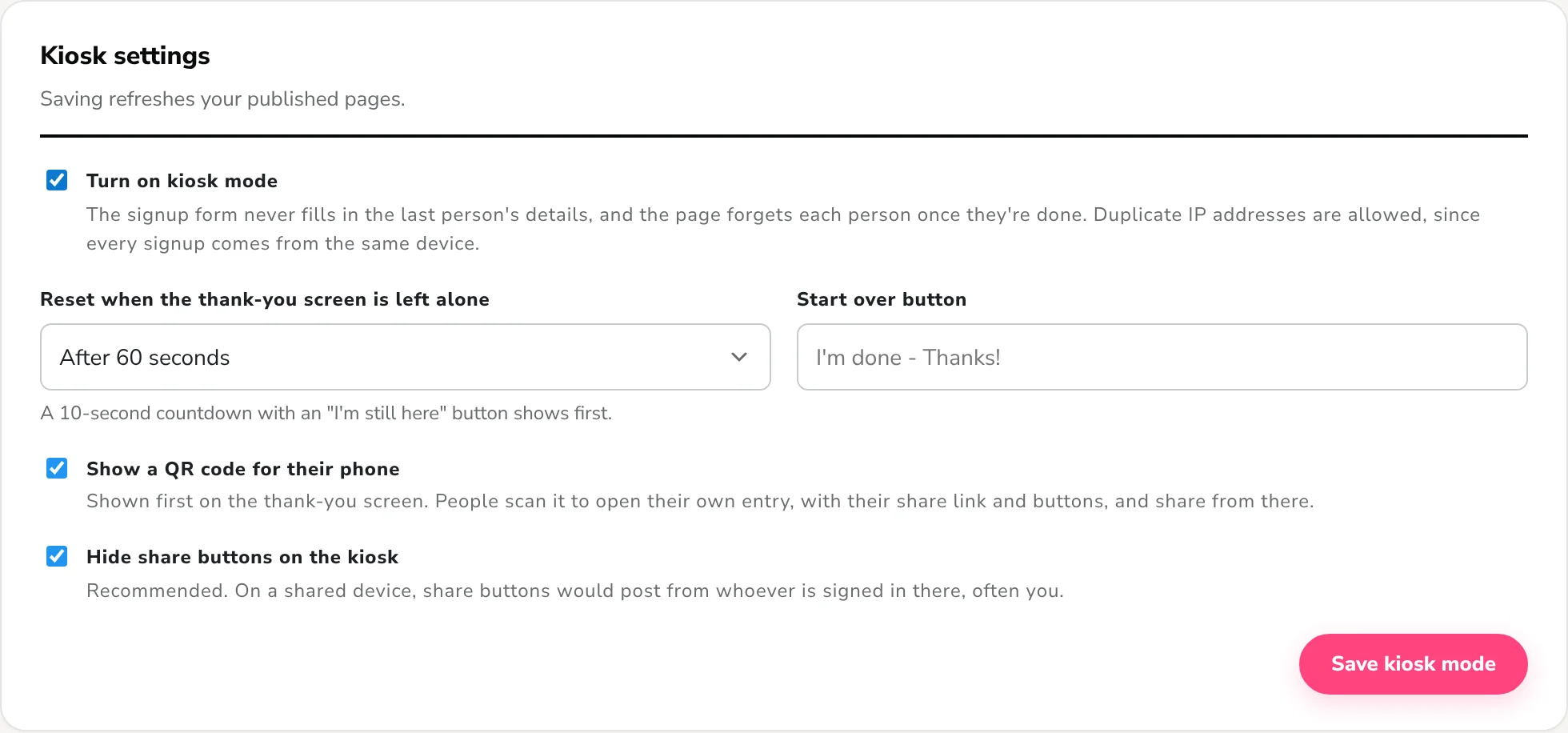
Set up in one settings page
Turn kiosk mode on in Campaign settings, choose how long the thank-you screen waits before it resets, and name the button people tap when they're done. The QR code and hidden share buttons are on by default.
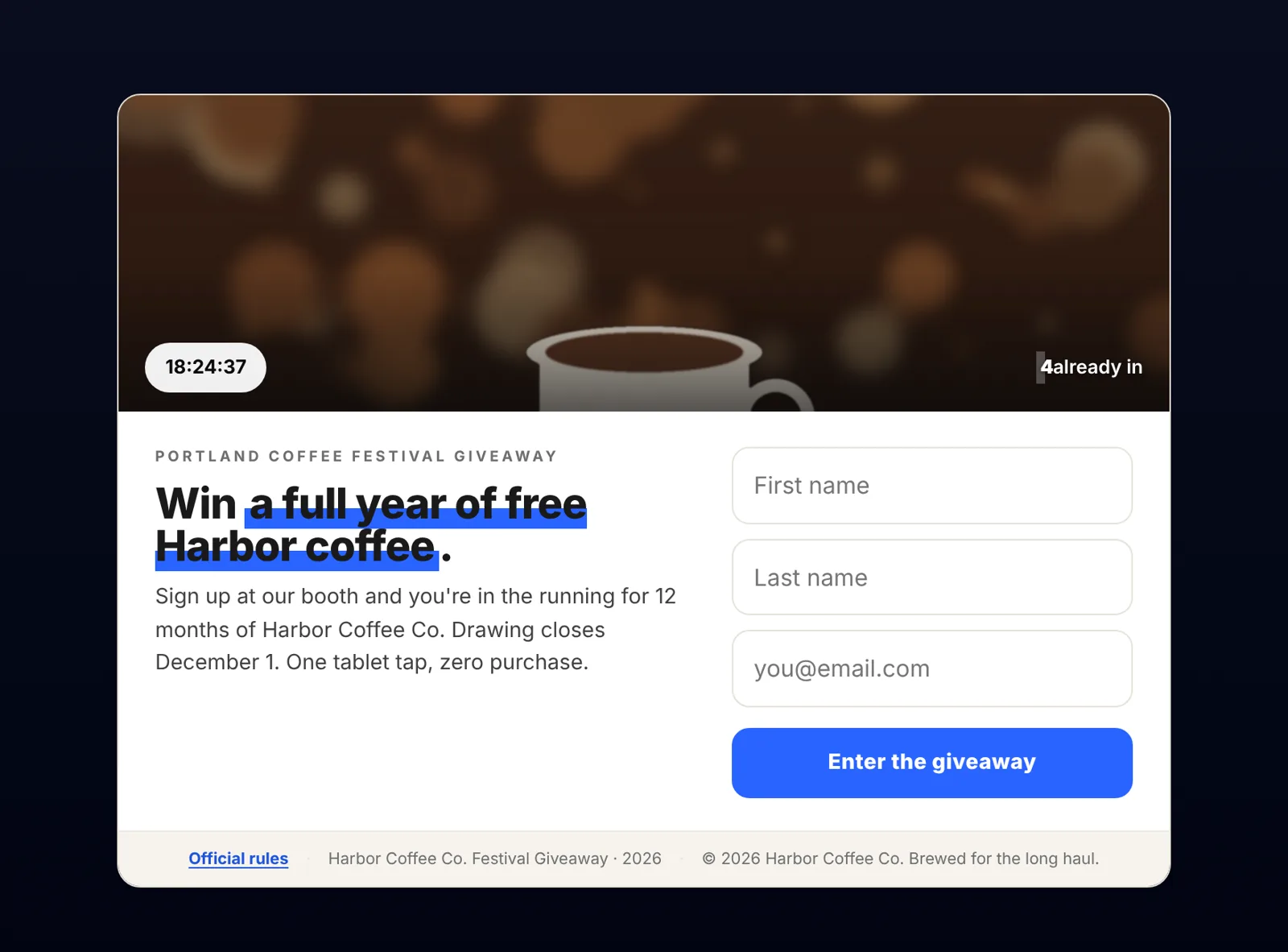
A fresh form for every visitor
Your giveaway page looks the way you designed it, with the form empty every time. Autofill is switched off on every field, and nothing from the previous entry comes back.
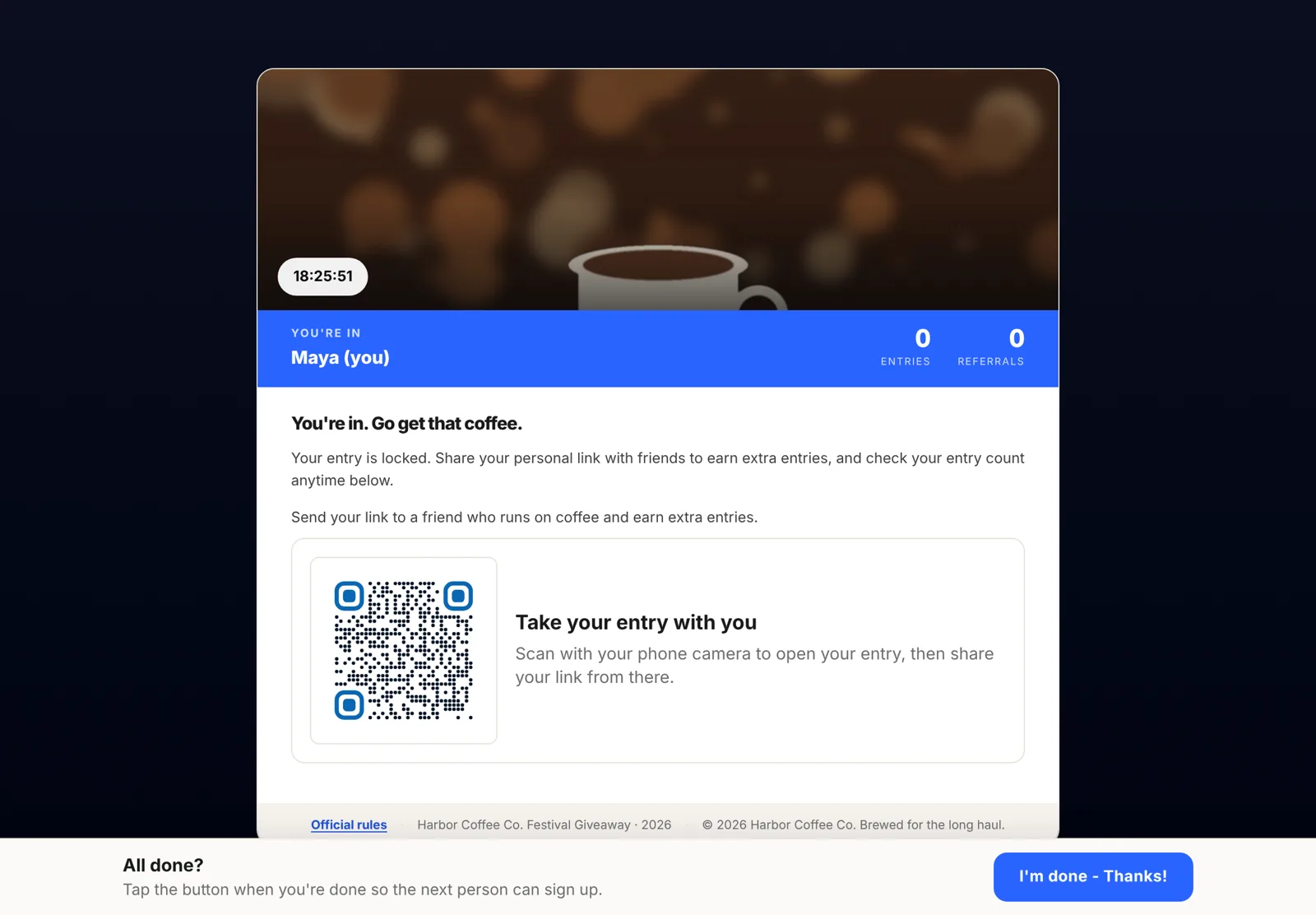
Their entry goes home on their phone
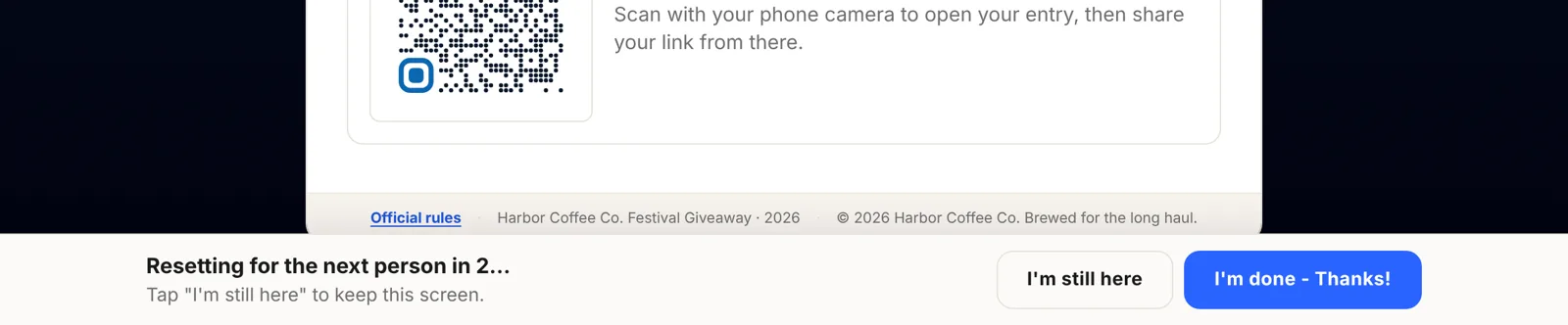
After signing up, a big QR code appears right where the share link would be. One scan opens their own entry on their phone, with their share link, share buttons and points. They can share from there on the walk to the next booth.
Resets on its own when people walk away
Not everyone taps "I'm done". If the thank-you screen is left alone, a countdown with an "I'm still here" button appears, then the page goes back to a blank form. Choose 30 seconds, 60 seconds, 2 minutes or never.
Running a giveaway at a conference, trade show or pop-up
A booth giveaway works best when it takes ten seconds to enter and gives people a reason to keep talking about you after they leave.
- Pick the prizeChoose something your buyers want, like your product or a bundle, rather than a gadget that attracts prize hunters.
- Keep the form shortName and email is enough at a busy table. Ask the rest in a follow-up email.
- Turn on the automatic replyIt sends each person their personal link, so the entry isn't lost when the tablet resets.
- Test the tabletOpen the kiosk link on the device you'll bring, enter once, scan the QR code and tap "I'm done".
- Make it visiblePut the tablet on a stand facing the aisle and say what's up for grabs on a sign above it.
- Point at the QR code"Scan this to see your entries" gets more people sharing than "tell your friends".
- Give a reason to shareBonus entries for every friend who signs up keep the campaign growing after the event.
- Name the draw timeA draw at the end of the day, or a winner email next week, brings people back.
- Draw a fair winnerUse Pick a Winner to draw from verified entries, weighted by entries if your rules say so.
- Follow up while it's freshEmail everyone within a day or two with the winner and an offer for everyone else.
- See who came in personKiosk signups are marked on each lead's profile, so you can tell booth visitors from online entries.
- Reuse itCopy the campaign for the next show and change the prize and dates.
Related features
Kiosk mode questions
Which plans include kiosk mode?
What device do I need?
Will people who scan the QR code see the kiosk version?
Do referrals still count?
Why hide the share buttons on the kiosk?
Do I need official rules for a giveaway at an event?
Try KickoffLabs for free
Bring a tablet to your next event and leave with a list of people who keep sharing after they've gone home.